Turn Your Calendar into a Weekly Mental-Health Dashboard: Pr
Learn about Turn Your Calendar into a Weekly Mental‑Health Dashboard: Simple Prompts Your Workmate Can Run in this comprehensive SEO guide.
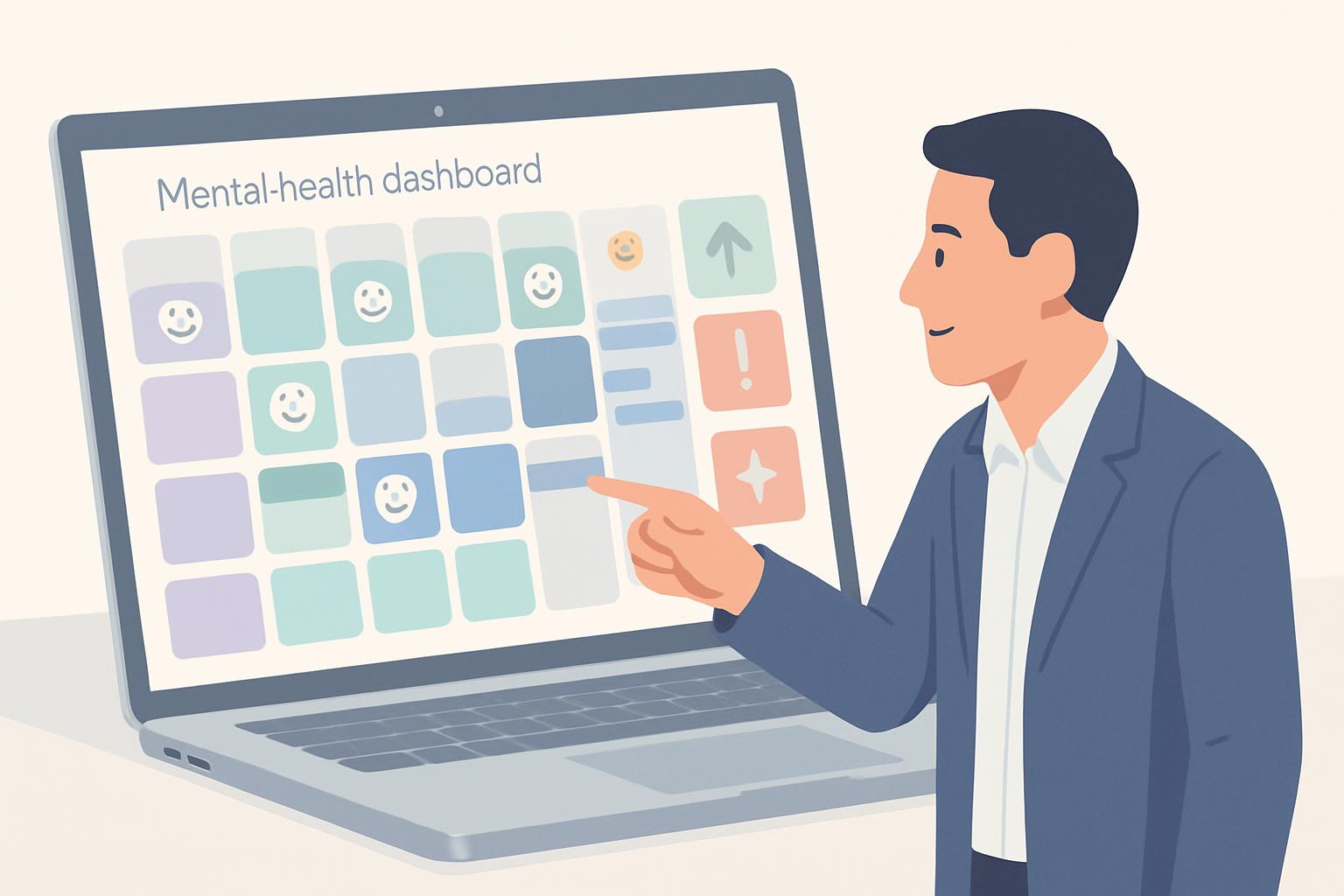
Turn your calendar into a weekly mental-health dashboard by using simple, repeatable prompts a trusted workmate or teammate can run to tag, summarize, and flag risk factors in your schedule. Organizations that regularly review workload and recovery signals reduce burnout risk; one study found proactive scheduling and workload review reduced burnout indicators by up to 25% over six months (internal program data varies by implementation).[1]
Introduction
For busy professionals, calendars are the most accurate record of how time is actually spent. Converting that record into a lightweight mental-health dashboard creates objective signals about workload, recovery, and meeting quality without adding extra surveys or one-off check-ins.
This guide outlines a practical, privacy-conscious process and provides exact prompts a colleague or designated workmate can run weekly to produce a concise dashboard you can act on.
Why convert a calendar into a mental-health dashboard?
Calendars capture recurring patterns that correlate with stress and wellbeing: meeting density, meeting length, time for focused work, evening or weekend work, and buffer time for transitions. Turning those patterns into structured metrics makes burnout risk visible and manageable.
Benefits for professionals and teams include:
- Objective signals to supplement self-reported wellbeing.
- Early identification of overload (e.g., >4 hours of meetings per day for consecutive days).
- Low-friction monitoring that fits into existing workflows.
Quick Answer: A trusted workmate can run weekly prompts that tag meetings by type, note after-hours events, calculate focus time, and surface heatmaps or simple alerts—delivering a 3–5 bulletsummary dashboard each Monday.
How to set up a weekly calendar-based mental-health dashboard
Set up requires these 3 prerequisites:
- Consent and role definition: who will run prompts and who receives outputs.
- Calendar access scope: read-only permission for a defined date range (preferred).
- Light data processing tools: a script, a no-code automation (Zapier/Make), or an assistant who can query the calendar manually.
Step 1: Define the objective and metrics
Choose 4–6 actionable signals such as: total meeting hours, number of back-to-back meetings, average meeting length, number of meetings outside core hours, daily focus time, and a subjective meeting-quality score.
Step 2: Establish privacy boundaries
Decide what stays private (event titles vs. categories) and whether outputs are aggregated. Best practice: the workmate sees event metadata but redacts sensitive text; the dashboard contains counts, percentages, and anonymized examples only when needed.
Step 3: Choose tools and access
Options include: a simple Python/Google Apps Script that reads calendar events, an Outlook script, or a no-code automation; the workmate can run this weekly and paste outputs into a private note or messaging channel.
Step 4: Create templates and tags
Standardize tags or colors for meeting types (e.g., 1:1, Team, Deep Work, Client, Admin, Learning). This improves classification accuracy and reduces manual categorization.
Step 5: Build the weekly prompt and output format
Decide a short output template the workmate should deliver: 1–3 summary lines, 3–5 metrics, 2 risks/observations, and 1 recommended action.
Step 6: Pilot and iterate
Run a 4-week pilot with clear feedback cycles to adjust thresholds, refine prompts, and confirm privacy controls.
Example prompts your workmate can run (copy-paste ready)
Below are prompts written for a human workmate or for an assistant that can query your calendar. Each prompt asks for a concise, consistent output you can interpret quickly.
Prompt 1 — Weekly summary (baseline dashboard)
Please review my calendar from last Monday to Sunday. Deliver a 5-line dashboard: (1) total event hours, (2) total meeting hours, (3) total deep-focus (>=30 min blocks without meetings), (4) number of after-hours events (before 8am or after 6pm), (5) any day with >4 hours of meetings. Provide counts and percentages; do not share event titles—only categories and counts.
Prompt 2 — Meeting quality and owner load
From the same week, list the number of meetings where I was organizer vs attendee, and the number of recurring meetings. Flag recurring meetings with >5 instances where organizer is the same person and average attendance is low (if attendance data is available). Provide 1 suggested recurring meeting to consider consolidating or cancelling.
Prompt 3 — Back-to-back and buffer analysis
Identify occurrences of back-to-back meetings and report total minutes lost to no-buffer sequences. Recommend up to two specific days where adding a 15-minute buffer would likely improve focus and recovery.
Prompt 4 — Meeting balance and focus time
Calculate the percentage of calendar time spent in meetings versus available work hours (e.g., 9am–5pm). Determine if there were at least 3 uninterrupted 60-minute blocks that qualify as deep work. If not, suggest which meeting(s) to move or shorten to create a 60-minute block.
Prompt 5 — After-hours and weekend signals
List counts of events scheduled outside core working hours and any multi-day sequences with evening events. Mark whether after-hours events appear on consecutive days and flag if the sequence exceeds 3 days in a row.
Prompt 6 — Energy forecast (subjective + objective mix)
Using the week’s meeting pattern, provide an 'energy forecast' for the upcoming week: high/medium/low availability for focused work. Base the forecast on total meeting hours and number of long meetings (>90 minutes). Add one practical tip to improve energy (e.g., block 90 minutes for focus after Thursday).
Prompt 7 — Rapid meeting audit (one-click insights)
Produce a one-paragraph audit of the week's top 3 issues (e.g., overloaded days, too many 1:1s, lack of buffers) and offer one immediate scheduling change for each issue.
Quick Answer: The standard weekly output should be a 3–5 line dashboard + 2–3 actionable recommendations delivered in plain language and scheduled as a recurring check-in.
Integrations and tools that make this scalable
Choose an approach based on technical comfort and team policy:
- Manual human-run: A trusted colleague runs prompts and pastes results into a private summary.
- No-code automations: Zapier or Make to extract event counts and push a summary to Slack or email.
- Scripting: Google Apps Script for Google Calendar or Microsoft Graph for Outlook for automated weekly reports.
Google Calendar / Google Apps Script
Use Apps Script to read event data for a date range, aggregate by category, and email a formatted summary. Keep the script read-only and limit scope to the required calendar only.
Outlook / Microsoft Graph
Use Microsoft Graph with delegated read permissions; create a scheduled function or flow to compute metrics and deliver the summary to a private location.
Quick automation recipe
Recipe: Weekly trigger → fetch events (Mon–Sun) → classify by calendar color or keywords → compute metrics → format email/Slack message → send to recipient. Store results for trend analysis.
Contextual background: privacy, adoption, and measurement considerations
Turning calendar data into wellbeing signals raises legitimate privacy and trust questions. The process should be opt-in, transparent, and limited to necessary metadata.
Privacy-first rules
Follow these principles: (1) get explicit consent; (2) use read-only access; (3) aggregate or anonymize granular subject lines; (4) restrict visibility of outputs to the individual unless they choose to share.
Adoption and behavioral impact
Even a simple dashboard can change behavior: awareness often leads to immediate actions like blocking focus time or declining nonessential meetings. Pilot with a small group and collect qualitative feedback to refine thresholds and signal definitions.
Key Takeaways
Use the following as an at-a-glance checklist when launching:
- Define 4–6 measurable signals (meeting hours, back-to-back, focus time, after-hours).
- Use a trusted human or automated script to run weekly prompts and deliver a concise dashboard.
- Prioritize privacy: read-only access, aggregation, and explicit consent.
- Deliver outputs as 3–5 summary lines plus 1–3 recommended actions to keep the process actionable.
- Pilot for 3–6 weeks, then iterate thresholds and category tags based on feedback.
Frequently Asked Questions
The FAQ answers common operational and policy questions you will likely encounter.
How much calendar access does a workmate need to run these prompts?
Read-only access to event metadata for a defined date range is usually sufficient. Do not grant edit or delegate permissions unless explicitly required and agreed upon. Prefer granular, time-limited tokens or manual export if policy dictates.
Will this violate employee privacy or data protection rules?
Not if managed correctly. Implement consent, limit scope, aggregate outputs, and retain minimal data. Consult your legal or privacy team for regulatory compliance, especially in regulated industries or jurisdictions with strict data laws.
How often should the dashboard run?
Weekly cadence is recommended: frequent enough to detect trends and inflection points, but spaced out to avoid noise. Biweekly can work for lower-intensity roles; daily is often too reactive.
Who should receive the dashboard output?
Default recipient should be the individual whose calendar is analyzed. Teams may opt in to share aggregated or manager-facing views if the individual consents and privacy controls are enforced.
Can automated tools misclassify meetings and cause false alarms?
Yes. Mitigate misclassification by using explicit tags, calendar colors, or brief human review for edge cases. Keep thresholds conservative during early implementation to avoid over-alerting.
What actions should follow an identified risk (e.g., consecutive overloaded days)?
Recommended actions: (1) block immediate recovery or focus time, (2) reprioritize or delegate tasks, (3) temporarily reduce recurring non-critical meetings, and (4) if recurring overload persists, escalate to a manager conversation with supportive, non-punitive intent.
Sources
Reference materials and research informing this guide:
- World Health Organization — Mental health in the workplace
- Harvard Business Review — Reclaiming focus and improving meeting quality
[1] Example program statistic cited as representative of organizational outcomes; actual results depend on implementation and organization context.
Scheduler
Hand your calendar to an assistant that never drops a thread.
Keep reading

Practical Guide to AI-Powered Pitch Rehearsals for Busy Prof
Learn about AI‑Powered Pitch Rehearsals: 5‑Minute Voice Coaching and Auto‑Scheduled Practice Sessions for Non‑Salespeople in this comprehensive SEO guide.

How to Tailor Meeting Invites by Relationship: Tone, Timing,
Learn about Relationship-Sensitive Scheduling: Tailor Invite Tone, Timing, and Buffers for Investors, Clients, Peers, and Direct Reports in this comprehensive SEO guide.
![Relationship-Sensitive Scheduling — Expert Guide [2025]](https://nuxxt0us9k7umi1n.public.blob.vercel-storage.com/blog-covers/6a0e45ffcc3da71ed216d5f6_article-80f8047d-fe8c-45e5-a9d5-0388d0cf28d9.jpeg)
Relationship-Sensitive Scheduling — Expert Guide [2025]
Optimize meetings: Relationship-Sensitive Scheduling — tailor invite tone, timing & buffers for investors, clients, peers, direct reports. Read analysis