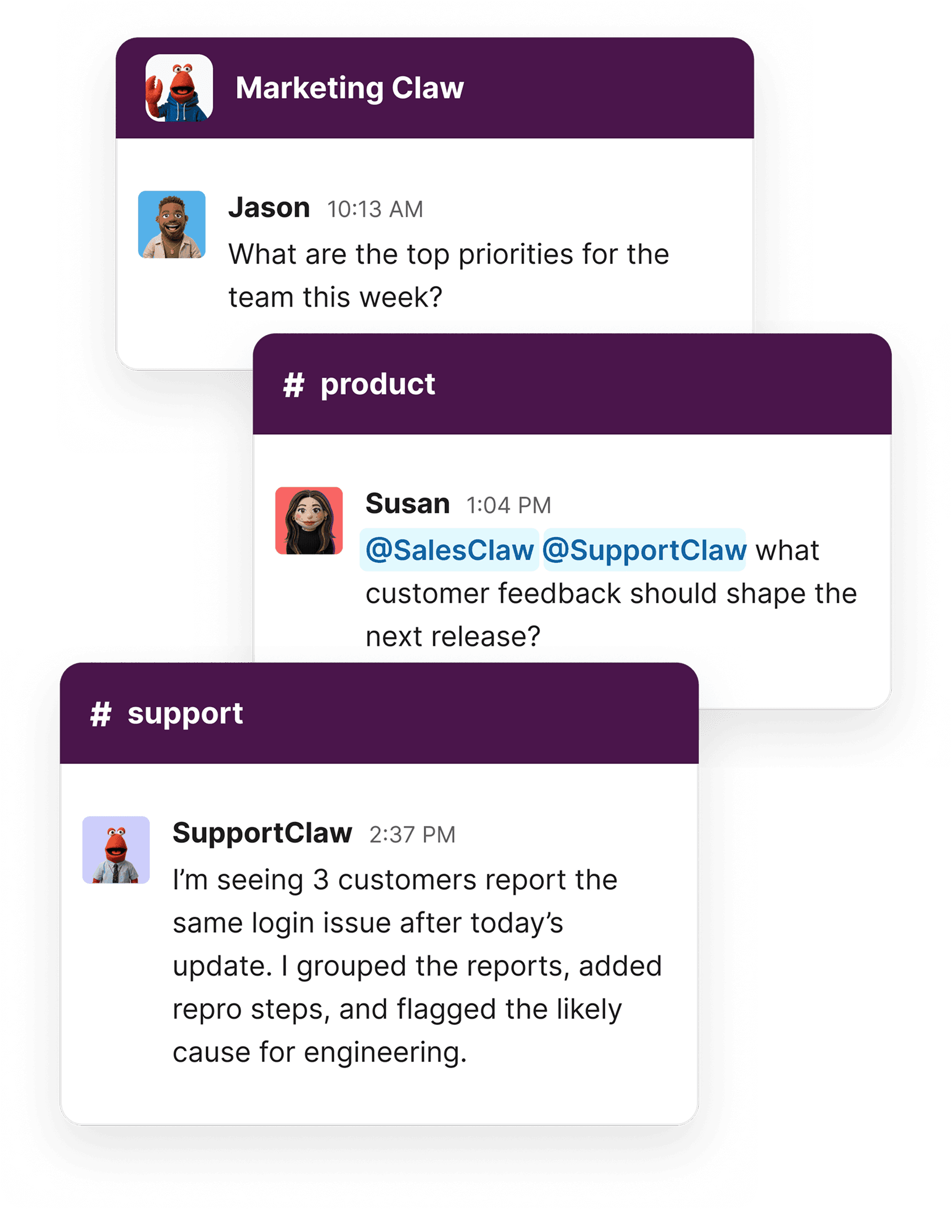
Mention a claw in any approved channel
Use @worky or a claw-specific handle to ask for help without leaving the conversation.
 Workmate for Slack
Workmate lets teams talk to their AI claws in channels, threads, and direct messages while admins keep routing, identity, and access under control.
Installation requires a Workmate account and permission to connect apps for your team. After sign-in, Workmate checks your Slack workspace, creates your team if needed, and then starts Slack's OAuth approval flow.
How it works
Workmate keeps the Slack install team-owned while each claw keeps its own name, avatar, channel bindings, and access rules.
Use @worky or a claw-specific handle to ask for help without leaving the conversation.
Team members can DM the app for private follow-ups, drafts, and task handoffs.
Admins decide which claw answers in each channel so support, sales, and operations stay separate.
Workmate only uses Slack content from channels and DMs where the app has been added.
Installation
The Add to Slack button starts the same setup path available inside Workmate under Apps and Connections. If you are not signed in yet, create or access your Workmate account first.
Claws answer in the channel, thread, or DM where the request started.
Team owners control installation, channel access, and per-claw routing.
Questions can be sent through the public support page without creating another account.