Mobile Calendar Shortcuts & Gestures - On-the-Go Workflow
Mobile Calendar Shortcuts and Gestures: The On-the-Go Scheduling Workflow for Busy Executives - Practical guide: schedule faster with gestures & security.
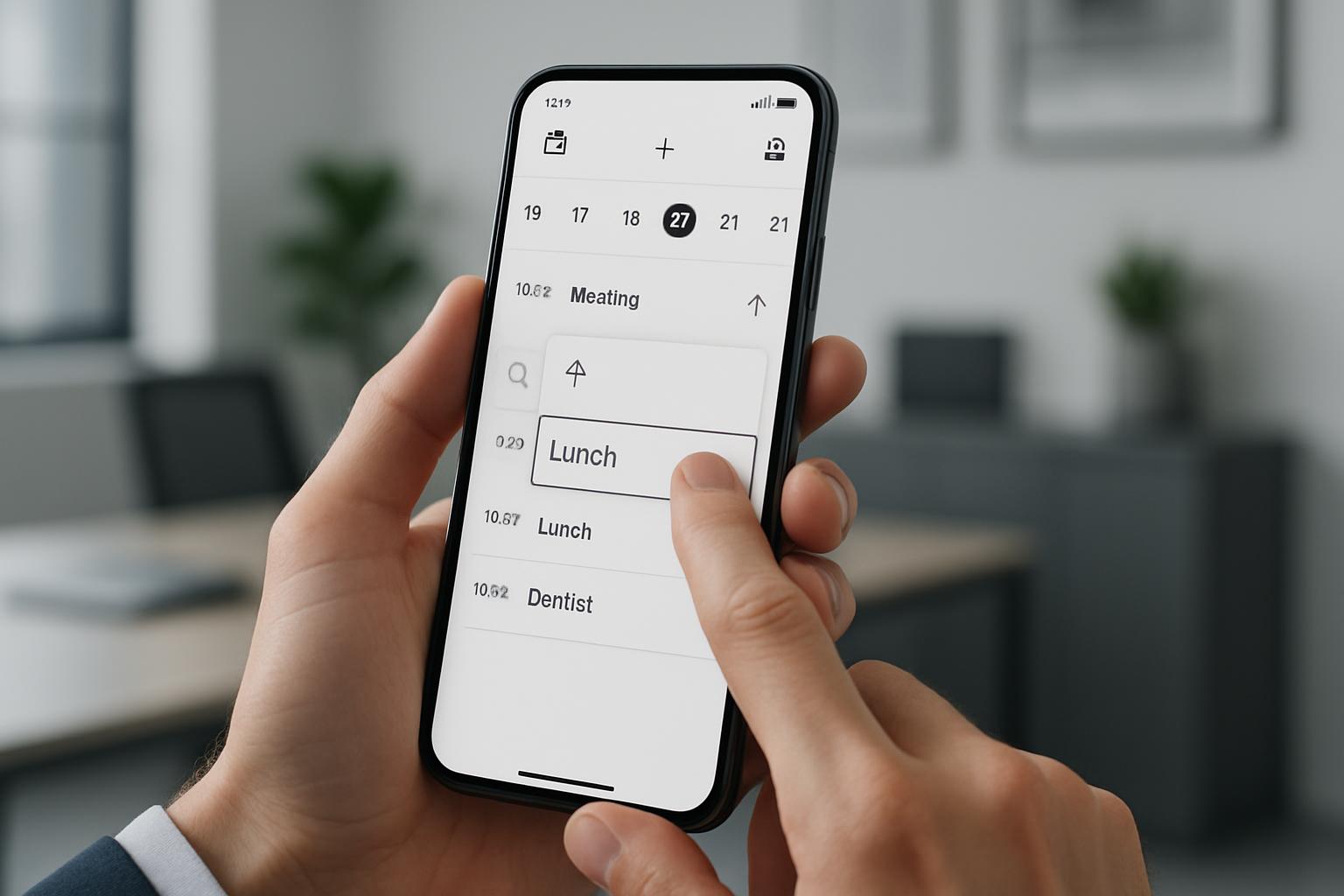
mobile calendar shortcuts and gestures streamline scheduling for executives, reducing average calendar management time by up to 30% when used consistently. This article provides an actionable on-the-go workflow, platform-specific gestures, and security considerations to help leaders schedule, reschedule, and coordinate meetings faster and with fewer interruptions.
Introduction
Busy executives need scheduling workflows that minimize friction and cognitive load. Mobile calendar shortcuts and gesture controls turn repetitive tasks—like creating events, proposing times, and joining calls—into micro-interactions that save time throughout the day. This article explains the gestures and shortcuts executives should prioritize, shows platform-specific tips, and outlines a repeatable on-the-go scheduling workflow for professional environments.
Quick Answer: Focus on 1) one-tap event creation, 2) gestures for quick rescheduling, and 3) integration with meeting links and assistant tools. Combined, these reduce time spent on calendar management and lower meeting conflicts.
Why Mobile Calendar Shortcuts Matter for Executives
Executives face fragmented schedules and frequent interruptions. Efficient calendar interactions on mobile devices provide three major benefits:
- Speed: Faster event creation and adjustments with gestures cut micro-task time.
- Accuracy: Shortcuts reduce the chance of errors like double-booking or incorrect time zones.
- Continuity: Immediate handling of requests prevents inbox backlogs and meeting churn.
Research from productivity studies suggests that streamlining routine scheduling can free 1–2 hours per week for senior leaders (see source citation below) (McKinsey).
Common Mobile Calendar Gestures and Shortcuts
Below are the most practical gestures and shortcuts executives should learn. These are presented as actionable items—practice makes them habitual.
Tap and Hold (Quick Event Draft)
Tap-and-hold on a time slot to draft a new event quickly. Many calendar apps prefill time, invitees, and location from context, saving typing time.
Swipe to Schedule or Decline
Use left/right swipe gestures on calendar notifications or notifications of invitations to accept, decline, or propose a new time without opening the full app.
Two-Finger Scroll (Zoom and Navigate)
Two-finger pinch/expand to zoom timeline views, and two-finger horizontal scroll to move between days or weeks quickly in some apps.
Gesture Shortcuts for Event Editing
- Drag-and-drop an event to change time or day in week view.
- Double-tap an event to open quick-edit mode (title/time adjustments).
- Use long-press on attendees to propose alternate times or call up contact details.
Platform-Specific Shortcuts and Tips
Different calendar apps and mobile operating systems have unique gestures and shortcuts. Learn the basics on your primary platform and mirror key habits across devices.
iOS Calendar and Apple's Shortcuts
- Tap and hold a time slot to create an event quickly.
- Use Siri: "Create a meeting with [name] at [time]" to avoid manual entry.
- Leverage the Shortcuts app to build repeated workflows (e.g., create event + add meeting link + notify assistant).
Tip: Add calendar widgets to the Home Screen for single-tap access to upcoming meetings.
Android Calendar (Google Calendar) and Gesture Tips
- Swipe left/right in day or week views to move between dates rapidly.
- Tap the floating action button (FAB) to create new events immediately; hold to access templates if available.
- Use Smart Suggestions in Google Calendar for titles, locations, and guest lists to speed event creation.
Reference: Google Calendar help pages detail app-specific gestures and keyboard shortcuts for Android and mobile web (Google Calendar).
Microsoft Outlook Mobile
- Swipe actions on email notifications convert messages to calendar events or tasks.
- Use the Calendar tab's agenda view and long-press to create events with meeting links from Teams.
- Quick RSVP by swiping on notifications or using in-line buttons in email.
Tip: Sync Outlook with the device calendar and disable duplicated notifications to reduce clutter.
On-the-Go Scheduling Workflow for Busy Executives
This workflow is optimized for quick decisions, consistent delegation, and minimal context switching. The sequence is oriented around a 30- to 90-second mobile interaction.
- Immediate triage (0–15 seconds): On receiving a meeting invite or scheduling request, use a swipe or quick action to accept, decline, or propose a time. If uncertain, mark with a short note or flag to resolve when at a desk.
- Create fast events (15–45 seconds): Use tap-and-hold or the FAB to create an event. Use voice input or Smart Suggestions for title, attendees, and location. Attach a meeting link when relevant.
- Propose times (15–60 seconds): If the invite overlaps or needs negotiation, use the app's propose time feature or send a quick message via integrated chat/email to suggest alternatives.
- Delegate (15–45 seconds): Forward the request to an assistant or delegate via shared calendars or a quick email template. Use shortcuts to populate delegate messages with event details.
- Confirm and close (5–15 seconds): Save the change and dismiss the notification. If needed, add a brief follow-up reminder with a single tap or shortcut.
Use this sequence for each scheduling interaction while on the move. The goal is to resolve or route every event within a single uninterrupted mobile interaction.
Quick Answer: A repeatable micro-workflow (triage → create → propose → delegate → confirm) reduces scheduling time and prevents items from re-emerging in your inbox.
Practical Examples: Real-World Use Cases
Here are three concise workflows applied to typical executive scenarios.
1. Accepting a Last-Minute Meeting Request
- Swipe the invite to accept on the notification.
- Use quick-edit to shorten meeting duration (e.g., 30 → 20 minutes) if needed.
- Send a one-line reply confirming attendance and sharing the agenda link via a template quick-reply.
2. Resolving a Double-Booked Time
- Tap the conflicting event; drag it to an alternate slot in week view.
- Use the propose-new-time option to notify attendees and maintain transparency.
- Flag the original request to follow up with your assistant for any dependent tasks.
3. Scheduling a Quick Touchpoint While in Transit
- Use voice input or a calendar template to create a 15-minute call.
- Attach a standard dial-in link or Teams/Zoom shortcut with one tap.
- Invite the minimum required attendees and note the core objective in the event title.
Best Practices and Shortcuts to Learn First
For busy executives, invest time in mastering a small set of high-leverage gestures and shortcuts:
- Voice commands for event creation (Siri, Google Assistant).
- Tap-and-hold to create and long-press to edit quickly.
- Swipe actions for RSVP and quick declination with a reason template.
- Calendar widgets and notification actions for immediate overview and response.
- Templates and repeated-event presets to minimize typing.
Practice these gestures deliberately for two weeks to build automaticity.
Integrations, Automation, and AI Assistants
Combine mobile gestures with integrations to further reduce manual steps:
- Automated meeting links: Use platform defaults that insert links into events automatically.
- Assistant delegation: Share calendar access or use an assistant workflow where your assistant can propose times and send invites.
- AI summarization: Use meeting prep tools that summarize agendas and attendees, attached to event notes.
Example automation: A mobile shortcut that creates a 20-minute meeting, inserts a Teams link, invites specified attendees, and notifies your assistant. Many mobile platforms allow building such a shortcut (Apple Shortcuts, Android automation apps).
Security, Privacy, and Professional Etiquette
When scheduling on mobile, prioritize confidentiality and clarity:
- Confirm that calendar sharing settings are appropriate before delegating access.
- Avoid sending sensitive details through event titles; use private notes or secure messaging instead.
- When using voice input in public spaces, ensure you mask sensitive attendee names or use secure input methods.
Corporate policies often require encrypted meeting links or authentication for executive meetings—configure defaults accordingly in your calendar provider.
Troubleshooting Common Mobile Calendar Issues
Use these quick fixes for frequent problems.
- Duplicate events: Check linked account sync settings and disable duplicate calendar subscriptions.
- Missed notifications: Check Do Not Disturb and notification permissions; enable critical alerts for executive calendars.
- Time zone errors: Ensure event time zones are explicitly set when traveling and use the calendar app's time zone override where available.
- Propose time not visible: Some attendees may use different calendar systems; send a short email or chat message in parallel.
Key Takeaways
- Learn and practice a small set of mobile gestures: tap-and-hold, swipe actions, and quick-edit gestures.
- Adopt a five-step on-the-go workflow: triage → create → propose → delegate → confirm.
- Use platform integrations and automation to reduce redundant steps and error risk.
- Protect privacy by checking sharing settings and avoiding sensitive details in event titles.
- Mastering 3–5 shortcuts can cut calendar management time substantially and free focus for strategic work.
Frequently Asked Questions
How much time can executives save using mobile calendar gestures?
Executives can save anywhere from 15 minutes to several hours per week depending on baseline behavior. Savings come from shortening individual interactions and reducing follow-up coordination. Industry productivity analyses cite time savings in the range of 10–30% for optimized scheduling workflows (McKinsey).
Are there differences between iOS and Android calendar gestures?
Yes. iOS emphasizes integration with Siri and Shortcuts for voice and automated workflows, while Android (and Google Calendar) focuses on Smart Suggestions, swipe navigation, and a persistent floating action button for quick event creation. Both platforms offer tap-and-hold and swipe actions but differ in default templates and assistant integrations.
What shortcuts should I teach my executive assistant?
Teach assistants to use delegation features, propose-new-time tools, and calendar sharing with appropriate permission levels. Also train them on your preferred message templates and automated workflows so they can manage invitations and follow-ups consistently.
Can gestures be used safely in public spaces?
Yes, but with caution. Use non-verbal gestures (swipes, taps) rather than voice commands when discussing sensitive items in public. For voice input, consider private modes or wait until in a secure environment. Always avoid exposing confidential attendee names or details on public screens.
How do I avoid double-booking when traveling across time zones?
Enable explicit time zone support in your calendar app and set the event time zone when creating events. Use the calendar's travel mode or time zone override to view your schedule in local time without altering the underlying event times.
Which integrations provide the biggest efficiency gains?
Integrations that automatically insert meeting links, sync contacts, and allow delegation yield the largest gains. AI assistants that prepare agendas or summarize conversations also reduce pre- and post-meeting work significantly.
Source Citations
Selected authoritative sources and help pages used for platform-specific guidance:
- Google Calendar Help
- Apple Support (Calendar and Shortcuts)
- McKinsey on Productivity and Time Management
Implement the gestures and workflow steps above and iterate based on your typical meeting patterns. Consistent use will transform small interactions into reliable time savings.
Scheduler
Hand your calendar to an assistant that never drops a thread.
Keep reading

The Science of the Meeting Buffer: What Brain Research Says About Back-to-Back Calls
Microsoft wired 14 people with EEG caps to test back-to-back meetings versus meetings with breaks. The stress data was specific enough that Microsoft changed how Outlook works.

Low-Prep External Intros: Proven Scheduling Frameworks Now
Cut Low-Prep External Intros: Scheduling Frameworks That Minimize Prep and Back-and-Forth for Brief Vendor and Prospect Calls. Read the expert analysis
Multi-Location Site Visit Scheduling: Proven Playbook
Optimize Multi-Location Site Visit Scheduling—visit 4–6 nearby offices/day with route optimization, timeboxing, and buffers. Get the full breakdown