What's New: Team Invitations, Cleaner Settings, and Smarter Coworker Scheduling
Easily invite your team members to Workmate and manage your custom assistants in a new team interface.
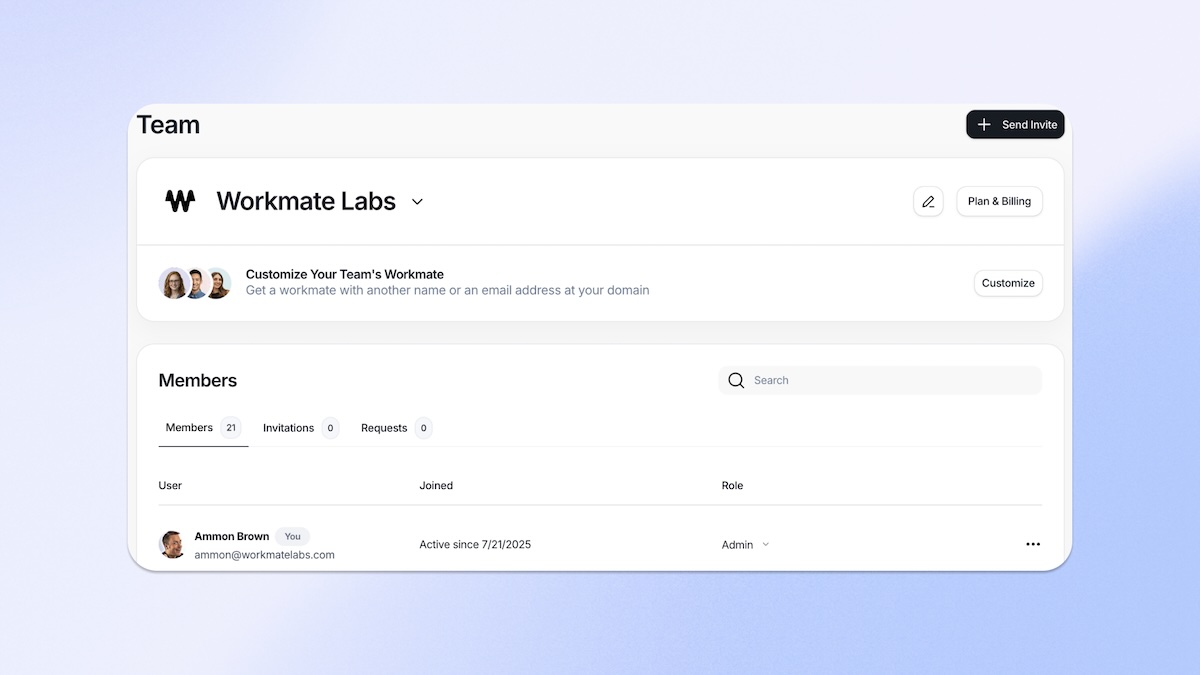
We shipped a set of updates that make it easier to manage your team and schedule meetings that involve your coworkers. Whether you're onboarding new team members or trying to book time with colleagues without the back-and-forth, these changes are designed to save you clicks and cut down on the "let me check with Sarah" delays.
Here's what's new.
1) Areorganized Team pagewith invitations front and center
We rebuilt the Team page to put colleague and team member settings where they are readily accessible. Invitations, team membership, settings, and permissions are now consolidated into one easy to use interface.
Why you'll care
- Faster onboarding. When someone joins your company or moves teams, you can invite them and adjust their settings in one place.
- **Automatically add colleagues.**Don't want to invite everyone? Add a domain and enable automatic team membership for any user with a matching email address.
- Clearer team visibility. See at a glance who's on your team, who's been invited, and who hasn't accepted yet.
2) Outlook better supports colleague calendars so Workmate Scheduler can schedule with your coworkers automatically
This one's simple but powerful: if you can see your teammate's calendar in Outlook, Workmate Scheduler can now see their free/busy times through you.
That means when you're scheduling a meeting that involves a coworker, Workmate Scheduler can factor in their availability automatically and send the invitation immediately. No more booking a time that works for you, sending the invite, then getting the "actually I have a conflict at 2" reply. No more pulling up multiple calendars and hunting for a mutually open slot.
How it works
You already have access to certain calendars in Outlook, maybe your immediate team, maybe specific colleagues your IT admin set up. Workmate Scheduler now uses that same access. We're not asking for new permissions or additional calendar connections. We're just working with what you already have to identify available slots across your team.
Just send an email to your colleagues, CC your Workmate Scheduler assistant, and ask for a meeting. Your Workmate Scheduler assistant will consider their availability and book the meeting. If they are Workmate Scheduler users and/or on your team, it will also consider their preferences when booking for an even greater degree of accuracy.
Why you'll care
- Fewer scheduling collisions. When you're booking a meeting with a colleague, Workmate Scheduler sees their conflicts before you propose times.
- Zero back-and-forth. Instead of proposing three options, getting shot down, and proposing three more, you land on times that work the first time, automatically.
- Group meetings that actually happen. When you need multiple people on a call, the coordination complexity goes up fast. Workmate Scheduler knowing everyone's availability upfront makes this a breeze.
3) Strengthening the coworker scheduling workflow
Beyond the Outlook calendar support, we made several improvements to how Workmate Scheduler handles scheduling that involves your colleagues.
- Better colleague recognition. We've improved the agent's ability to recognize which attendees are coworkers with available calendars, obviating the need to tell Workmate Scheduler when you request a meeting.
- Not just fast, but nearly instantaneous scheduling. When everyone in a meeting has a calendar accessible to Workmate Scheduler, it will simply pick a time and book it. Zero back and forth, zero need to look at all the calendars in Outlook or Google.
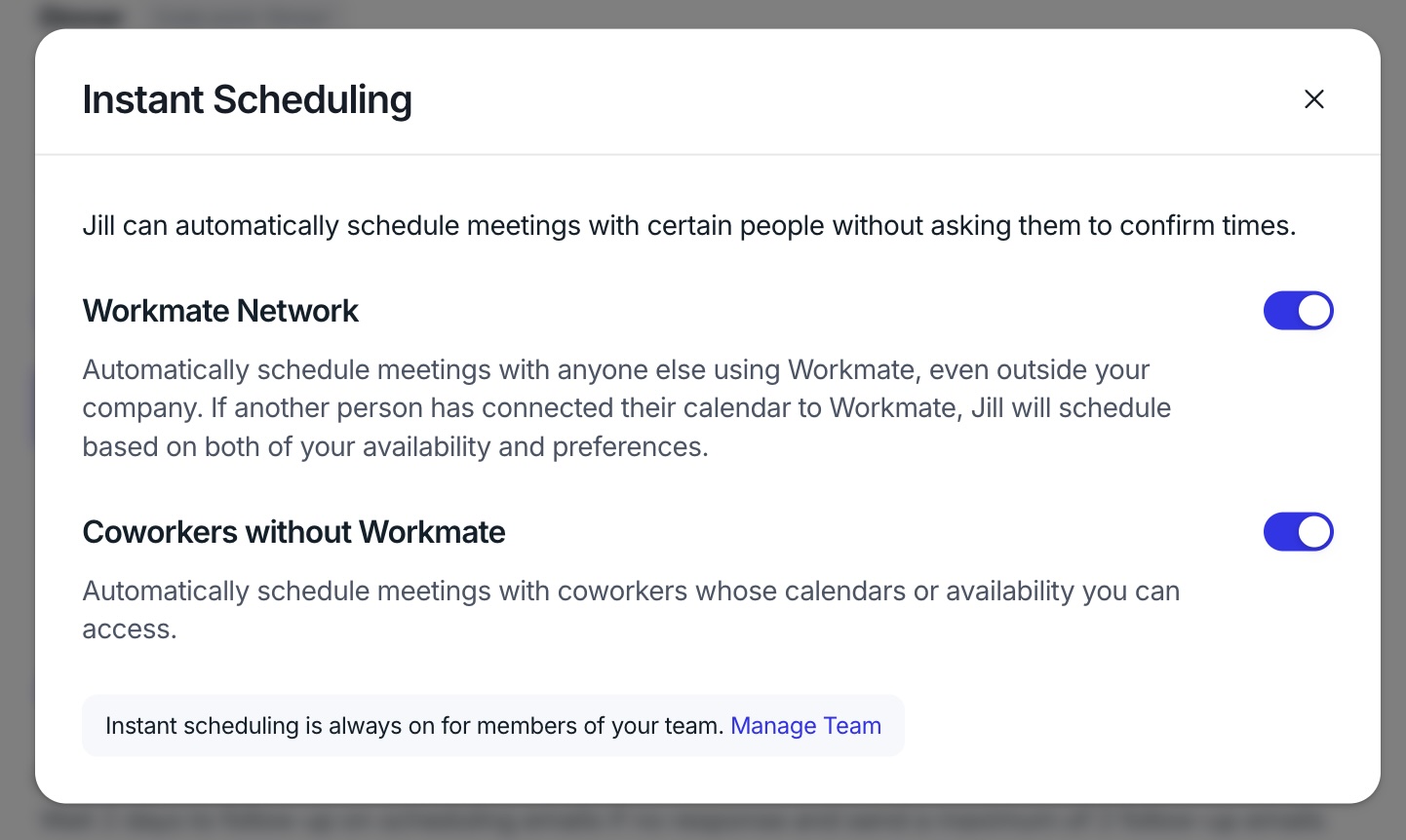
- Easy control over auto-scheduling. We've added settings to allow you to toggle on and off whether you want meetings instantly booked and with whom. Just check the bottom of your settings page:
Try it out
Log in, check out the updated Team page, and next time you're scheduling with a coworker you'll experience the magic of friction-free scheduling! If you have feedback, send it our way we're building for the way you actually schedule.
Scheduler
Hand your calendar to an assistant that never drops a thread.
Keep reading
![Let Your Assistant Coordinate Community Time [Expert Guide]](https://nuxxt0us9k7umi1n.public.blob.vercel-storage.com/blog-covers/6a4ebc18e5446b1eaa15183e_article-003cd0cc-ab45-4305-8f38-433069e4bc7d.jpeg)
Let Your Assistant Coordinate Community Time [Expert Guide]
Delegate: Let Your Assistant Coordinate Community and Volunteer Time Without Cluttering Work Hours - save hours & boost engagement. Read the expert analysis
![Meeting Fragility Scores: Proven Expert 2025 Guide [Cut 38%]](https://nuxxt0us9k7umi1n.public.blob.vercel-storage.com/blog-covers/6a0e468ce006c47c42cc8a49_article-e9063138-07a2-4c69-bb31-020d6afca8cc.jpeg)
Meeting Fragility Scores: Proven Expert 2025 Guide [Cut 38%]
Learn Meeting Fragility Scores: Rank High- and Low-Priority Events by Reschedule Risk and How Assistants Should Respond. Read the expert analysis
![24/7 Scheduling Coverage: When to Use Human+AI [Expert]](https://nuxxt0us9k7umi1n.public.blob.vercel-storage.com/blog-covers/6a0345582ddd36512328c560_article-da50835a-16c8-44bb-9278-55a3748b67d5.jpeg)
24/7 Scheduling Coverage: When to Use Human+AI [Expert]
Discover how 24/7 Scheduling Coverage: When You Need Human Assistants Backed by AI cuts errors 40% and boosts peak response 50%. Read the expert analysis